Showing posts with label Sql. Show all posts

Tuesday, October 4, 2016

Save and retrieve images from database using C# in ASP.NET


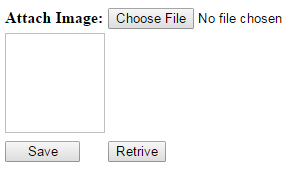
  • Create  the interface with a file uploader and an image like this.
  • Create a table to save images.

  • We'll see how to save an image to the database. Add the following html code to the create the interface.

<head runat="server">
    <title></title>
    <script type="text/javascript" src="http://ajax.googleapis.com/ajax/libs/jquery/1.8.3/jquery.min.js"></script>
    <script type="text/javascript">

        function readURL(input) {
            if (input.files && input.files[0]) {
                var reader = new FileReader();
                reader.onload = function (e) {
                    $('#<%=Image1.ClientID%>').prop('src', e.target.result)
                }
                reader.readAsDataURL(input.files[0]);
                }
            }
            $("#uploadFile").change(function () {
                readURL(this);
            });
    </script>
</head>
<body>
    <form id="form1" runat="server">

        <table>
            <tr>
                <td>
                    <asp:Label ID="Label1" runat="server" Text="Attach Image:" Style="font-weight: 700"></asp:Label>
                </td>
                <td>
                    <asp:FileUpload ID="uploadFile" runat="server" onchange="readURL(this)" />
                </td>
            </tr>
            <tr>
                <td colspan="2">
                    <asp:Image ID="Image1" runat="server" Height="100px" Width="100px" />
                </td>
            </tr>
            <tr>
                <td>
                    <asp:Button ID="btnSave" runat="server" Text="Save" Width="75px" ValidationGroup="Save" OnClick="btnSave_Click" />
                </td>
                <td>
                    <asp:Button ID="btnRetrive" runat="server" Text="Retrive" OnClick="btnRetrive_Click" />
                </td>
            </tr>
        </table>
    </form>

</body>


  • After attaching an image, it shows the preview in the image control.

The image saving code is as follows.

protected void btnSave_Click(object sender, EventArgs e)
{
    int imageId = 1;//Table's first row - default image
    if (uploadFile.PostedFile.FileName != string.Empty)
    {
        imageId = imageUpload();
    }
    Image1.ImageUrl = "Image.aspx?ImageID=" + imageId + "";
}

private int imageUpload()
{
    string filePath = uploadFile.PostedFile.FileName;
    int imageId = 1;
    string filename = Path.GetFileName(filePath);

    string ext = Path.GetExtension(filename);
    ext = ext.ToLower();
    string contenttype = String.Empty;

    switch (ext)
    {
        case ".jpg":
            contenttype = "image/jpg";
            break;
        case ".png":
            contenttype = "image/png";
            break;
        case ".gif":
            contenttype = "image/gif";
            break;
        default:
            break;
    }
    if (contenttype != String.Empty)
    {
        Stream fs = uploadFile.PostedFile.InputStream;
        BinaryReader br = new BinaryReader(fs);
        byte[] bytes = br.ReadBytes((Int32)fs.Length);

        imageId = page6Service.UpdateImage(filename, contenttype, bytes);
    }
    return imageId;
}
  • We can retrieve a particular saved image with the following code

protected void btnRetrive_Click(object sender, EventArgs e)
{
       Image1.ImageUrl = "Image.aspx?ImageID=1";
}


  • To retrieve an image like this, first we have to create a web page as Image.aspx with an empty form. In the Page_Load event of that page add this code.

protected void Page_Load(object sender, EventArgs e)
{
    if (Request.QueryString["ImageID"] != null)
    {
        try
        {
            DataTable dt = page6Service.retrieveImage(Convert.ToInt32(Request.QueryString["ImageID"]));
            if (dt.Rows.Count > 0)
            {
                byte[] bytes = (byte[])dt.Rows[0]["Data"];
                Response.Buffer = true;
                Response.Charset = "";
                Response.Cache.SetCacheability(HttpCacheability.NoCache);
                Response.ContentType = dt.Rows[0]["ContentType"].ToString();
                Response.AddHeader("content-disposition", "attachment;filename=" + dt.Rows[0]["Name"].ToString());
                Response.BinaryWrite(bytes);
                Response.Flush();
                Response.End();
            }
        }
        catch (Exception ex)
        {
            throw ex;
        }
    }
}

Tuesday, August 9, 2016

Execute string inside a Stored Procedure

When there are multiple values in a single input parameter for a SP we can use sp_executesql .

Assume the query  is like below.

select * from Item where ListId in ('IT/03218-ACC','IT/03253-ACC')


When we use this inside a SP,

CREATE PROCEDURE [dbo].[SP_ItemBlog]
(
@ItemList varchar(max)
)
AS

DECLARE @ItemQuery varchar(max) ='',
@Query nvarchar(max)


IF @ItemList <>''
BEGIN
SET @ItemList = REPLACE(@ItemList,'`','''')
END


BEGIN
SET @Query ='select * from Item where ListId in ('+@ItemList+')'

EXECUTE sp_executesql @Query
print @Query


END


Execute SP

SP_ItemBlog '`IT/03218-ACC`,`IT/03253-ACC`'

Tuesday, July 12, 2016

Computed Columns in a Table


How to create computed "Age" column


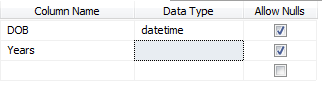
  • Create the table like this.

  • Enter the column name and accept the default data type (nchar(10)). The Database Engine determines the data type of the computed column by applying the rules of data type precedence to the expressions specified in the formula.
  • In the Column Properties tab, expand the Computed Column Specification property.
  • In the (Formula) child property, enter the expression for this column in the grid cell to the right. [code] (0 + Convert(Char(8),GETDATE(),112) - Convert(Char(8),DOB,112)) / 10000.
  • [/code]

Friday, July 8, 2016

Create a report (RDLC) to show one record per page


  • Bind the data set to the report.


  • Suppose you want to group the data based on Ref No.
  • Add a List control.
  • Drag and drop any attribute from data set inside to that List control.
  • Right click on Details, under Row Groups and select Group Properties.
  • Under General tab, click add and select "Ref No" from Group on.


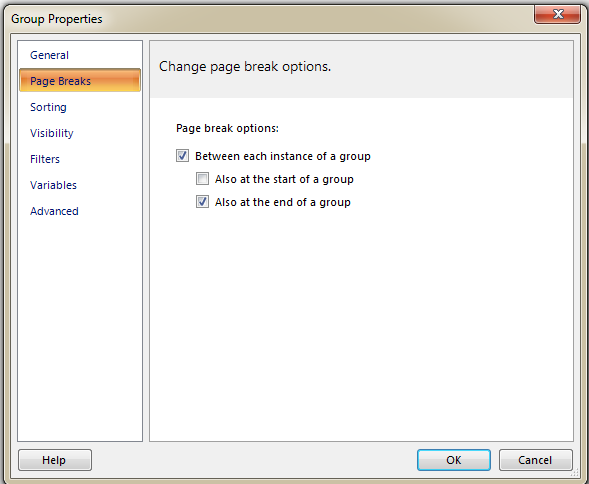
  • Under Page Breaks tab, select the page break options as follows.

  • Then you can design your report as you want.


Friday, February 5, 2016

Create a simple web site (with data base connection)

  • From the menu select  File --> New Project.
  • Give a name for your project and save.
  • Open the Web.config file and add the following lines to create the connection.
[code] <connectionStrings> <add name="AppConString" connectionString="Data Source=[Server name]; Initial Catalog=[Database name]; User ID=[Database username]; Password=[Database password]" providerName="System.Data.SqlClient" /> </connectionStrings> [/code]
  • Create a new folder named "Data" and create a class within it named "DBCon".
  • Add the following lines at the top of the class.
[code]using System.Data; using System.Data.SqlClient; using System.Configuration;[/code]
  •  Add the methods  as follows to open and close connection. 
[code] public class DBCon { public SqlConnection con; public void ReadyConnection() { try { con = new SqlConnection(); con.ConnectionString = ConfigurationManager.ConnectionStrings["AppConString"].ConnectionString; if (con.State != ConnectionState.Open) con.Open(); } catch (Exception ex) { throw ex; } } public void CloseConnection() { try { if (con.State == ConnectionState.Open) con.Close(); } catch (Exception ex) { throw ex; } } } [/code]
  • Add the following methods to deal with the database.
[code] public DataTable GetDataTableFromSQL(string sSQL) { DataTable dataTable = new DataTable(); try { ReadyConnection(); SqlCommand cmd = new SqlCommand(sSQL, con); cmd.CommandTimeout = 0; dataTable.Load(cmd.ExecuteReader()); return dataTable; } catch (Exception ex) { throw ex; } finally { CloseConnection(); } } public DataTable GetDataTableFromSp(string spName, SqlCommand cmd) { try { DataTable dt = new DataTable(); ReadyConnection(); cmd.CommandText = spName; cmd.CommandType = CommandType.StoredProcedure; cmd.Connection = con; cmd.CommandTimeout = 0; dt.Load(cmd.ExecuteReader()); return dt; } catch (Exception ex) { throw ex; } finally { CloseConnection(); } } public bool ExecuteNonQueryFromSQL(string sSQL) { try { ReadyConnection(); SqlCommand cmd = new SqlCommand(sSQL, con); cmd.CommandTimeout = 0; int count = cmd.ExecuteNonQuery(); if (count > 0) return true; else return false; } catch (Exception ex) { throw ex; } finally { CloseConnection(); } } public bool ExecuteNonQueryFromSp(string spName, SqlCommand cmd) { try { ReadyConnection(); cmd.CommandText = spName; cmd.CommandType = CommandType.StoredProcedure; cmd.Connection = con; int count = cmd.ExecuteNonQuery(); if (count > 0) return true; else return false; } catch (Exception ex) { throw ex; } finally { CloseConnection(); } } [/code]

  • Then by calling these methods we can execute the database queries as needed.

Create temp table

[code] SELECT * INTO tempDistributor FROM Distributors [/code]

Insert/ Update a table with data from another table


Insert

[code] insert into Distributors(CompanyName,City,District,TelephoneNo, DistributorListId,TypeListId) select CompanyName,City,'Colombo',Phone,88,2 from Temp [/code]


Update

[code] update Distributors set Distributors.District = Temp.District from Distributors inner join Temp on Distributors.ListId = Temp.ListId [/code]